
This page documents RITMO's usage of the Movesense devices and required steps for datalogging and data livestreaming. It refers primarily to the Movesense official documentation but also provides some information related to RITMO's use cases.
Quickstart Guide
Datalogging vs Livestreaming
Your intended use case determines which firmware needs to be installed on the device. The Movesense devices can be configured for:
- Datalogging, in which data is recorded onto the device's internal memory and can be retrieved later.
- Livestreaming, in which data is streamed from the device to a computer in real time via Bluetooth Low Energy (BLE).
Firmware is installed on the device using the Movesense Showcase app, which is available for iOS via the App Store and Android via sideloading the APK:
By default, all RITMO Movesense devices are configured with the firmware for datalogging. A modified version of the firmware is installed, which increases the internal shutdown timer from 60 seconds to 6 hours. See the?Firmware Shutdown Timer?section below for more details on this change.
See the Livestreaming Essentials section below for how to install the livestreaming firmware.
Ensure you are using the correct firmware version for your use case. Using the wrong version can result in errors and other issues!
Datalogging Essentials
Installing the Datalogging Firmware
By default, all RITMO Movesense devices should already be configured with the datalogging firmware. You can check the firmware version using the Showcase app for Android. Connect to the device and then select 'App Info' from the sensor list. The name should be 'Standard BLE services sample' or similar if the datalogging firmware is installed.
Both RITMO Samsung Galaxy A25 phones are loaded with the Movesense firmware for datalogging. It is located at:?Internal storage/MOVESENSE/.
To install the firmware, open the Showcase app, select 'DFU', select the firmware zip file and the device you wish to change, and tap 'Proceed'. The firmware will be installed, which takes 2-3 minutes.
Installing The Datalogger App
With the correct datalogging firmware installed, datalogging can be started and stopped using the Movesense Datalogger app for Android. This app is pre-installed on RITMO's two Samsung Galaxy A25 phones. Alternatively, you can install the app on a different Android device via sideloading. Download the app here.

Connecting to The Movesense Device
On opening the app, tap 'Scan' to see all active Movesense devices in your Bluetooth range listed, then tap the device in the list you want to connect to. It will take a few seconds for the device to connect to the phone, after which the datalogger screen will appear.
If your device is not listed, place your fingers on the two metal pins on the back to power it on. If it still does not appear, your device may be have a dead battery.
Starting & Stopping a Log

The datalogger screen will open when you are connected to the device.?
- First select which sensors you want to be logged from the 'Path to measure' dropdown menu. For example, '/Meas/ECG/250' indicates that the log will record the ECG at 250Hz.
- Tap 'Start Logging' to begin the log. You can now close the app and disconnect from the device and it will continue logging until you tap 'Stop Logging' in the app. With the 6-hour timeout, the device will automatically shut down 6 hours after Bluetooth is disconnected.?
Downloading a Log
To download a log, tap it in the list on the datalogger screen. Select to download as either a JSON file or RAW sbem file. We recommend JSON for short logs (<30 minutes) and RAW for long logs (>30 minutes). Read here for more details.
RAW logs must be converted to a JSON file afterwards on a Windows PC using the sbem2json.exe utility from Movesense, which you can download here. Refer to the 'Downloading Log Data' section below in the detailed instructions?for how to use this utility.
Livestreaming Essentials
Installing the Livestreaming Firmware
Both RITMO Samsung Galaxy A25 phones are loaded with the Movesense firmware for livestreaming. It is located at:?Internal storage/MOVESENSE/.
To install the firmware, open the Movesense Showcase app, select 'DFU', select the firmware zip file and the device you wish to change, and tap 'Proceed'. The firmware will be installed, which takes 2-3 minutes.
Livestreaming With HTML & Python
Movesense provide a Python script and an HTML interface for livestreaming data from the device to a PC, Mac or Linux system. These can be downloaded from the Movesense-device-lib here.?Both of these can be modified for specific use cases.
To run the HTML interface, open it in your browser. You will be able to connect to the device over Bluetooth and see a live graph of the device's accelerometer. You can also change the sample rate of the accelerometer.
To run the Python script, you must have Python installed on the computer, and have installed the Bleak package (pip install bleak). Open the script in the command line by navigating to the correct directory and then entering 'python movesense_sensor_data.py <your device serial>'. The accelerometer data will print out to the terminal window at 13Hz.
Repositories
- Movesense-device-lib - the Bitbucket respository containing firmware source code, pre-compiled firmware versions, and other scripts for working with Movesense from the desktop.
- Movesense-mobile-lib - the Bitbucket repository containing the Android and iPhone Showcase apps, and their source code.
Hardware Components
Movesense device
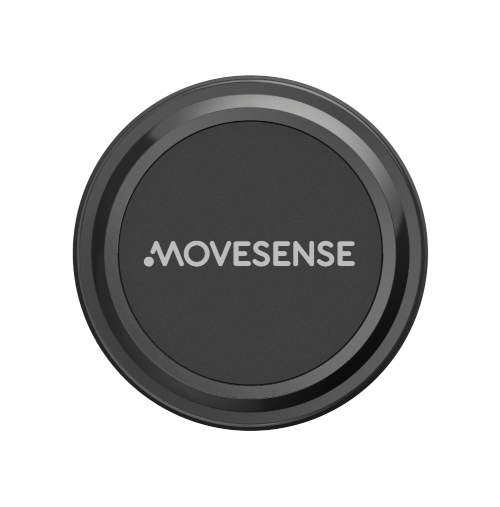 We have 20 Movesense 'big mem' variants and one Movesense 'active' variant. Our 'big mem' variants have a white front panel, as opposed to the Movesense logo shown here.
Belt
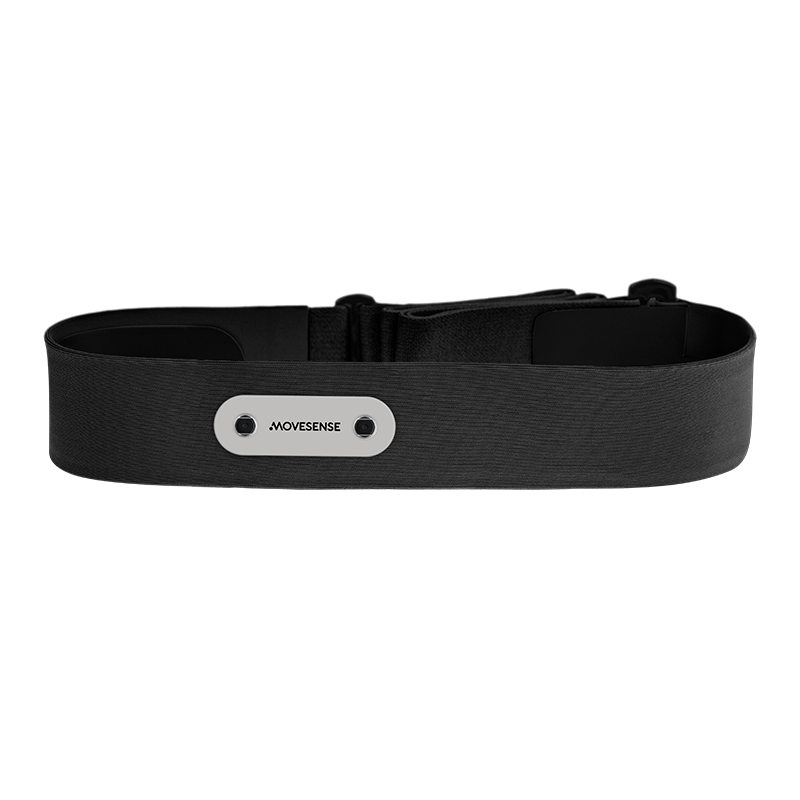 We have 30 belts. The belts contain two electrodes (single channel ECG and ground) which allows the Movesense devices to record ECG data when worn using the belt. The belts come in one size and are fully adjustable.
Wristband
 We have 20 bands which allow a Movesense device to be worn around the wrist. ECG data cannot be collected using these bands as they do not contain any electrodes. They are therefore suitable for collecting IMU data only.
Wristband mount
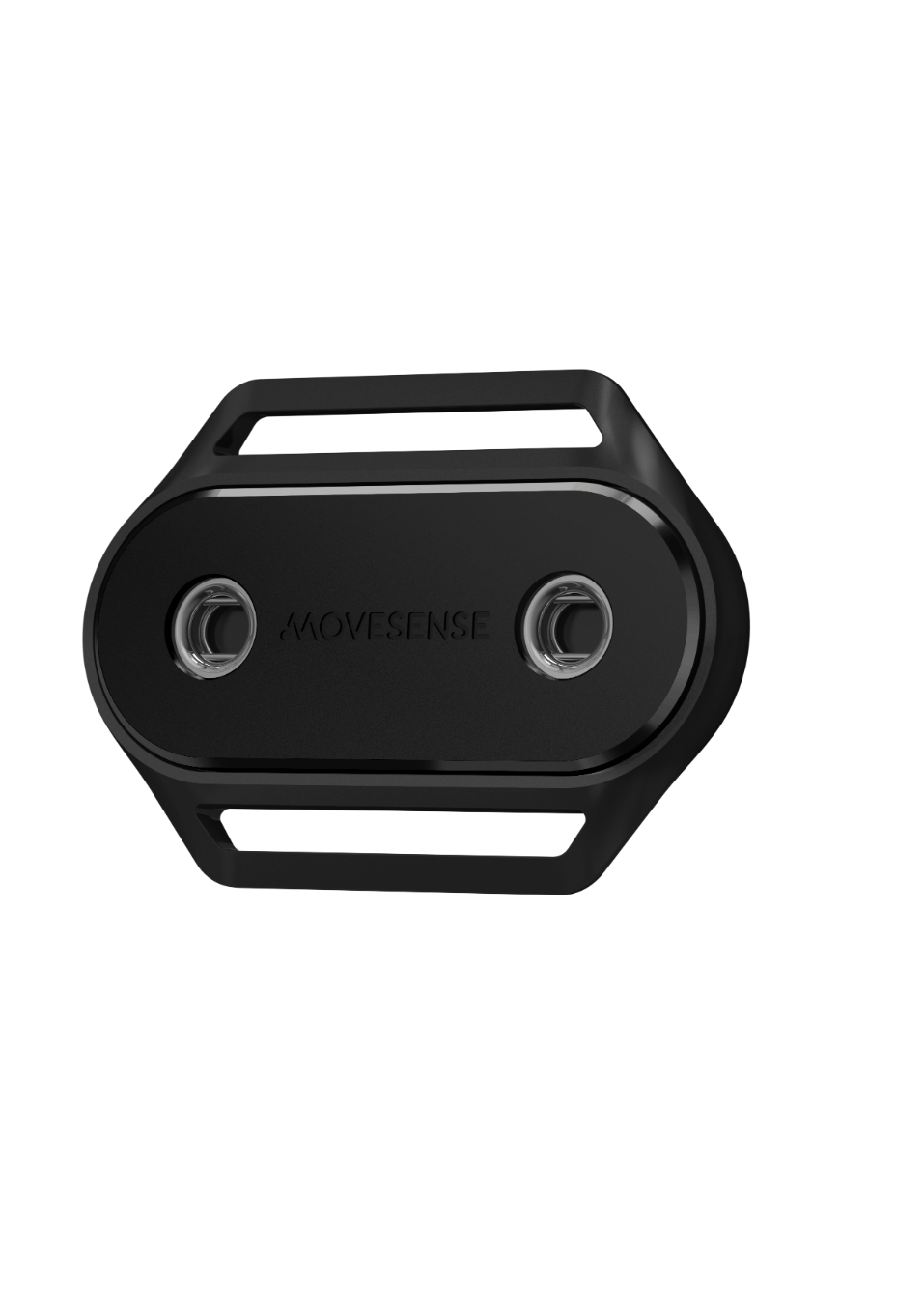 We have 20 wristband mounts. These attach to the wristbands and allow a Movesense device to be clipped into them.
Phones
We have two Samsung Galaxy A25 phones specifically for working with the Movesense devices. The Showcase and Datalogger apps are already installed on these phones.
Batteries
The Movesense device use disposable CR2025 batteries. RITMO can provide additional batteries if needed.
Device Variants
Introductory information from the Movesense developers can be found in the main page of their website here: https://www.movesense.com/docs/
We have two different variants of the Movesense devices:
- 'Active' variant - have the Movesense logo on the front, 384KB of internal memory
- 'Big mem' variant - white front panel, 128MB of internal memory
There are different options for the firmware, or the software that controls the hardware inside the sensor, depending on your required application. This is discussed in detail in the Device Firmware section below. The default firmware 'ble_std_services' should be enough for most datalogging applications. However, if you wish to livestream data to a PC/Mac, a custom firmware is required called 'gatt_sensordata_app'. Source code for all sample firmware from the developers can be found here: https://bitbucket.org/movesense/movesense-device-lib/src?
Device Firmware
Building the Firmware
For building a firmware follow the steps from this page https://www.movesense.com/docs/esw/getting_started/. Depending on the hardware variant used, the build process can vary slightly. See this page for the correct build line when updating a 'big mem' variant: https://www.movesense.com/docs/system/hw_variants/
The two ZIP files created by the build process are the firmware. The section ‘How to update the sensor over Bluetooth’ from https://www.movesense.com/docs/esw/getting_started/ explains which ZIP file to use in what case, but usually this is the one without ‘_w_bootloader’ in the filename, as the sensors are already running firmware version 2.0.0 or above. Now it is time to update the sensor.
N.B: To use the DataLogger app, you must install the 'ble_std_services' firmware. For livestreaming data to Python or web, you must install the 'gatt_sensordata_app' firmware. Neither will work without the correct firmware installed on the Movesense device.
Updating the Firmware over Bluetooth
The update can be performed through a process called DFU (Device Firmware Update). This page shows the process: https://www.movesense.com/docs/system/dfu_update/ . The two Galaxy A25 Android phones can be used for updating firmware through the Showcase app. The same page indicates where to find the mobile Showcase app for updating, and provides links to samples.
N.B: the pre-compiled samples in 'movesense-device-lib/samples/bin' cannot be used directly with the Movesense 'big mem' variant, since they are built for the 'active' variant. You must build the firmware specifically for the 'big mem' variant as indicated in the previous section.
Note on the Datalogging Firmware Shutdown Timer
As of version 2.2+, the datalogging firmware (ble_std_services) is configured by Movesense to shut down 60 seconds after the device is disconnected from Bluetooth. This shutdown timer is also active while datalogging, i.e. the device will shut down and datalogging will stop 60 seconds after the device is disconnected from Bluetooth.
As a temporary fix, we have changed the shutdown timer length in the datalogging firmware to 6 hours. This means that the devices should?log data for 6 hours after they are disconnected from Bluetooth. They will also stay on for 6 hours after they are disconnected from Bluetooth when not logging data.
This has allowed RITMO to use the devices for longer recording sessions such as during Bodies in Concert. However, it also reduces the effective battery life of each device as they do not shut down until 6 hours after they are last used. The battery percentage of each device can be checked in the Showcase app.
Changing the Firmware Shutdown Timer Length
The shutdown timer length in the datalogging firmware must be changed in the firmware source code before it is compiled. The latest firmware version with the extended shutdown timer should already be compiled and copied onto the Galaxy A25 phones. However, if this is not the case, this section details how to change the shutdown timer length in the firmware source code.
The timer length is defined by the AVAILABILITY_TIME variable at line 20 in the 'BleServicesApp.cpp' file in the firmware source code (./samples/ble_std_services/BleServicesApp.cpp). This value is defined in milliseconds, therefore by default it is 60,000 ms = 1 minute. The 6 hour timer length is?21,600,000 ms.

The firmware can then be compiled as normal with the updated shutdown timer length.
Known Firmware Issues
In this section we discuss the latest issues and status regarding the sensor firmware. This section is continually updated as issues are discovered or solutions for them are developed.
- A Movesense 'active' variant was flashed with the last firmware update 2.1.4, it can be connected with the mobile apps but the Android datalogger does not work by default, in this case some exploration is required for making this app work with this hardware variant.
- A Movesense 'big mem' variant was flashed with a build created from the?samples (https://bitbucket.org/movesense/movesense-device-lib/src/master/samples/) called ‘gatt_sensordata_app’ in version 2.1.3. The message from the process in an Android phone was successful, but the sensor stays with the light on and now it cannot be recognized by any Bluetooth device. We tried to activate the ‘DFU recovery mode’ (https://www.movesense.com/docs/system/dfu_update/) but it does not work for resetting.
Data Collection
By default, the sensor can stream data to the apps for Android (https://bitbucket.org/movesense/movesense-mobile-lib/downloads/ ) or iOS (App Store https://apps.apple.com/us/app/movesense-showcase/id1439876677 ). In these apps the corresponding data of interest can be activated to be collected in the phone. CSV files will be created and can be retrieved later from the phone's file system. It is easier to collect these files from an Android phone, so it is recommendable to use one of the A25's if possible.
Datalogger and Logbook (Internal Data Recording)
The Movesense documentation explains the features for internal recording in the devices: https://www.movesense.com/docs/mobile/android/datalogger_logbook/?
For now, the Movesense DataLogger Android app can be used to activate and deactivate the internal recording. It can be downloaded from here: https://bitbucket.org/movesense/movesense-mobile-lib/downloads/DataLoggerSample-1.5-release.apk
After connecting to a device, you will find option to set the specific sensors within the device to be recorded and their sample rates, functionality to start and stop recording, and a file manager to retrieve the logs from the device and delete recorded logs.
You can freely connect to devices, set them logging, and disconnect without stopping the logging. Note the shutdown timer is still active while datalogging, therefore the devices will automatically stop logging and shut down once the timer is completed if the device is not re-connected to Bluetooth while logging.
Downloading Log Data
Data can be retrieved from the device as either a RAW format (sbem file) or as a JSON file, depending on the size of the log.
- JSON: suitable for logs of <30 minutes in length. Downloads as a JSON file. Not suitable for longer logs as the data is stored in the phone's RAM which quickly runs out. If this error occurs, the download will stop without warning.
-
RAW: suitable for longer logs (>30 minutes). Downloads as an sbem file which must be converted to a JSON on a Windows PC using the sbem2json.exe tool from Movesense:?https://bitbucket.org/movesense/movesense-device-lib/downloads/?Place the sbem2json.exe file and the log to be converted in the same directory. Navigate to that directory in your terminal and use the command 'sbem2json <unconverted_RAW_file_name> <desired_JSON_file_name>'. E.g., 'sbem2json myLog.sbem myLog.json'.
-
Note: as of datalogging firmware version 2.2+, Movesense have allowed for significantly longer logs to be downloaded directly as JSON files. We have had success downloading logs of up to 3 hours directly as JSON files.
The log filename is based on the time the recording stopped, with the time taken from the phone's clock. It is therefore recommended to note the start times for each recording to help with aligning data streams during data processing.
Processing Log Data
While the log files downloaded from the Datalogger app contain the time at which the log was stopped to the nearest second, the devices do not internally record clock time in the log data.
Instead, they record the amount of milliseconds passed since the device was switched on. A synchronization cue procedure is therefore required if you wish to synchronize the log data with other devices or with clock time.
Known Issues
- We have experienced logs stopping unexpectedly with longer recordings (>30 minutes) while using the DataLogger app. We think this may be more prevalent when recording multiple sensors at high sample rates i.e., IMU at 208Hz and ECG at 500Hz, as this causes the device's internal memory buffer to fill up, resulting in a crash.? Currently, we recommend only using the devices for recording short logs. If you cannot risk any unexpected data loss, we strongly recommend using different devices e.g., Equivital.
- Update July 2024:?We used 13 'big mem' variant devices for Bodies in Concert with KORK on 6 June 2024. Each device was used with a belt and set to record only the ECG signal at 250Hz using the Datalogger Android app downloaded from the mobile-lib repository. Each device used the datalogging firmware in version 2.2.1 with the 6-hour shutdown timer. Multiple devices spontaneously stopped datalogging during the concert. We have not yet been able to identify the cause of these stoppages, as we recorded only a single sensor per device, at a sample rate approved by Movesense. We are in contact with the Movesense team to find a solution and will update this section accordingly.
-
In recent tests, it has been observed that datalogging works for the Movesense "big mem" variant, but not for the Movesense "active" variant. More exploration regarding the right configuration and possibly firmware must be performed.
Live Data Streaming to PC/Mac/Linux
The Movesense developers provide a sample Python script for streaming live accelerometer data at 13Hz from a Movesense device to a PC/Mac/Linux. The Movesense device has to expose services or attributes through GATT (more about GATT here https://learn.adafruit.com/introduction-to-bluetooth-low-energy/gatt).
The following instructions are from the Movesense developers:
- Download the movesense-device-lib repository and build the https://bitbucket.org/movesense/movesense-device-lib/src/master/samples/gatt_sensordata_app/ sample firmware according to the hardware variant as explained in the Device Firmware section of this page. Update the firmware on the device(s) using the Movesense Showcase App on Android or iOS.
- In the same gatt_sensordata_app folder there is a python_client folder containing the script movesense_sensor_data.py. Running this script requires the Bleak package (https://github.com/hbldh/bleak ). Look in the bleak GitHub repository for the requirements for your computer, then you can install via pip (pip install bleak).
- Run the movesense_sensor_data.py script by providing the device serial number (on the back) as an argument for the execution line. The serial number can also be checked on any Bluetooth device scanner, and is the number after the ‘Movesense’. Example command: python movesense_sensor_data.py 223130000507
- You should be able to see the acceleration data printing in the console where you executed the script.
- The developers also provide a simple HTML page to graph the accelerometer data in the web_client folder.
Note on Livestreaming Data Format
The streamed data is returned to the Python script as an array of raw bytes. In the sample script which uses the path '/Meas/Acc/13' to measure the accelerometer at 13 Hz, each data packet is returned as an array of 18 bytes which is structured as follows:
- Array[0]:?Result type (not used)
- Array[1]: Client reference (not used)
- Array[2:5]: Timestamp as 4-byte / 32-bit integer
- Array[6:9]: Acceleration in X axis as 4-byte / 32-bit float
- Array[10:13]: Acceleration in Y axis as 4-byte / 32-bit float
- Array[14:17]: Acceleration in Z axis as 4-byte / 32-bit float
Movesense provide some further details on the structure of the return data here.
We have not tested this script extensively to measure other sensors (e.g., IMU/ECG) or at different sample rates (>13Hz). However, in these cases each data packet appears to be larger i.e., more bytes, rather than packets being sent more frequently. User experimentation is required to better understand this behaviour.
Known Issues
- Occasionally the Python script will fail to connect to a device, either by saying that the device could not be found at all, or by finding the device and then failing to connect. We have found that after re-running the Python script several times the device is usually found as expected.
Movesense Datalogging Status - August 2024
While using the Movesense devices to record ECG data during MusicLab: Abels KORK, several devices stopped recording spontaneously during the concert. We communicated with Petri from Movesense regarding this issue, and the 6-hour timeout in the datalogging firmware.
Firmware to Prevent Shutdown While Datalogging
Regarding the timeout, we were informed that the HR Wakeup App firmware has code the prevents the device from powering off while datalogging, while maintaining the 60-second shutdown timer when not datalogging. We have tested this on a single Movesense device by logging a 2-hour ECG log using the HR Wakeup App firmware, and the log recorded for the entire duration as expected. However, further testing with multiple devices would be ideal to see if any logs stop spontaneously with this firmware.
We compiled this firmware for version 2.2.1, and it is on both Samsung A25 phones.
Suggested Fixes for Spontaneous Stopping of Datalogging
Petri from Movesense suggested that the most likely cause of the devices stopping datalogging was that they were low on battery. We checked the battery value of each device using the Showcase app and found that all were at 70-100%, leading us to doubt this explanation. We asked whether this measurement was reliable, but have not received a response as of 22 August 2024.
Any previous data on the devices may also be a factor in the spontaneous stopping of recording. Some devices contained multiple previous logs during the KORK experiment, although none were filled to more than ~75% after the experiment. Nonetheless, it is recommended to wipe each device between studies.
Future Work
Custom Collection through Phone (Proposal)
As data collected from the sensors is needed for later processing, a way to receive this data could be through the mobile application and then redirect it to a storage service so that it can be retrieved easily afterwards. This feature is not implemented and needs development. Such solution would require the following:
- A server to store the data collected.
- A web interface to upload data to the server (Backend system).
- Modify the Movesense Android ‘Showcase App’ (https://bitbucket.org/movesense/movesense-mobile-lib/src/master/android/ ) so that it can use the web interface to upload data as it is received in the bluetooth streaming module.
- As part of the web interface, a way to retrieve the data from the server for further analysis. In this case, depending on the preferred tools, the solution can include example clients to connect to the server (e.g. python scripts)
The DataLogger App for Android could be modified to send the files to the storage server. The Android project is here? https://bitbucket.org/movesense/movesense-mobile-lib/src/master/android/samples/DataLoggerSample/. Once the web interface is implemented it can expose an API that can be used by several clients, like this proposal for the DataLogger app.
Multiple Movesense Devices (to be tested)
The features to test for multiple sensors are the following ones:
- Ensure that the ‘Movesense “big mem”’ works on the Showcase app and the DataLogger app.
- Ensure that the ‘Movesense active’ works on the Showcase app and the DataLogger app. In this case, it might require a different configuration for this variant. Check this site? https://www.movesense.com/docs/mobile/android/datalogger_logbook/?
- ‘Multi Connection’ option in the Android Showcase app.
- DataLogger activation per each sensor and data retrieving from every sensor.
Livestreaming Python Client Data to OSC
A modified version of the Python script for livestreaming could be developed to integrate an OSC client to allow livestreamed data from the device to be sent out from Python using the OSC protocol. This would allow the devices to be implemented into interactive music systems and other real-time projects.